
 Raspberry Pi · Hi-Fi Music Server
Your music.
Your hardware.
Your way.
Väinö transforms a Raspberry Pi into a high-fidelity music server. Stream your entire library to any room, controlled from iPhone, Android, or any browser — no cloud, no subscription, no monthly fee.
$49.95 one-time · no subscription · free updates within v1


Everything at your fingertips
Full control from your phone. Browse your library, manage the queue, tune the equalizer, and administer sources — all from the free iOS and Android app.
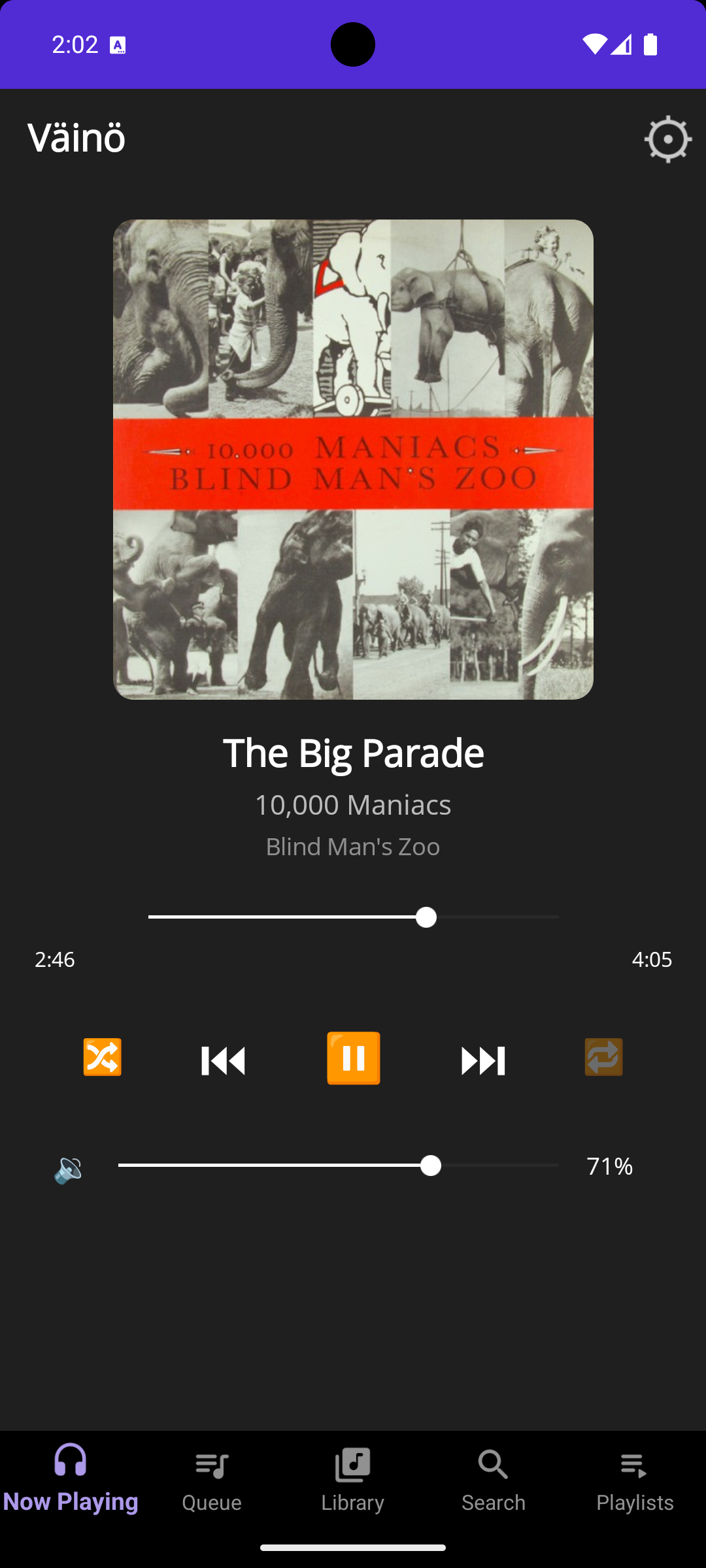
Now Playing
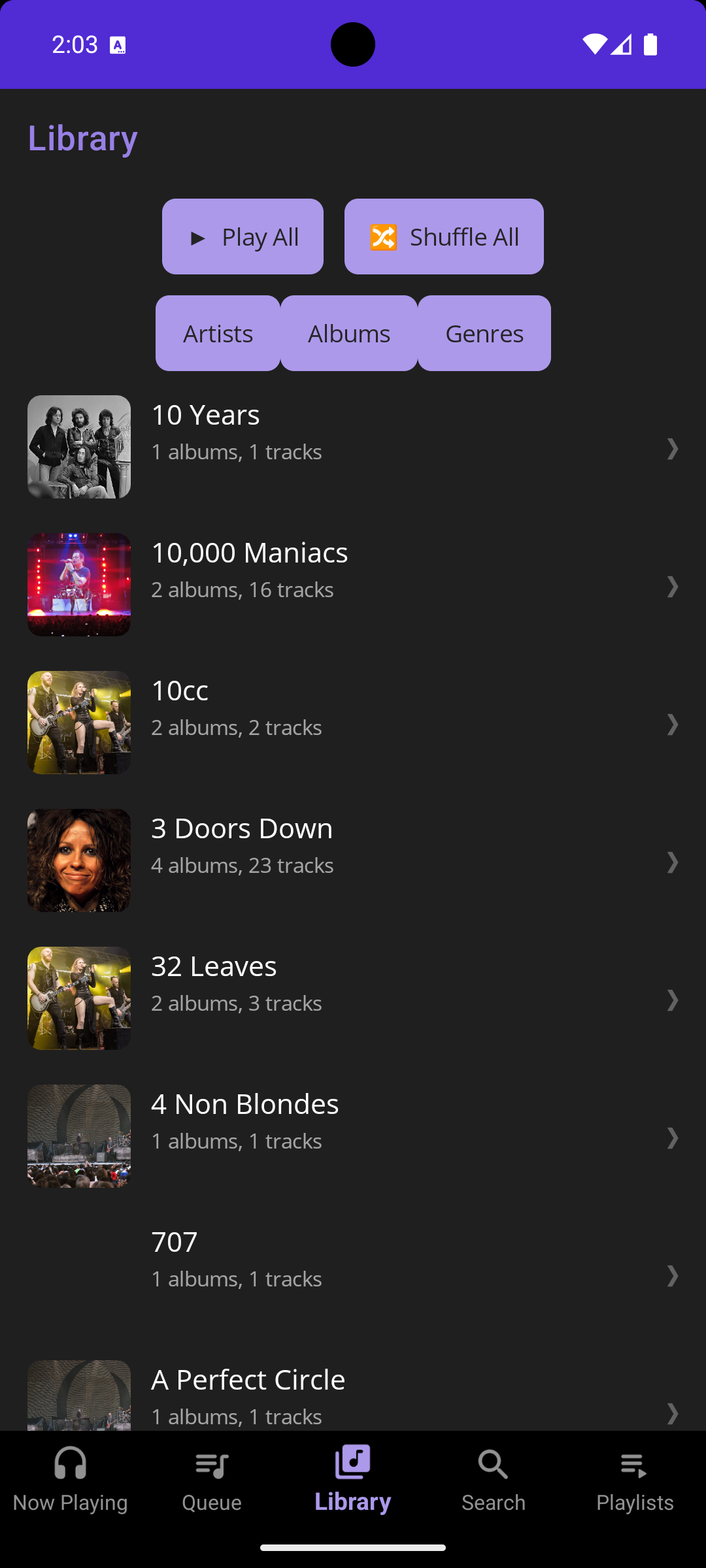
Library
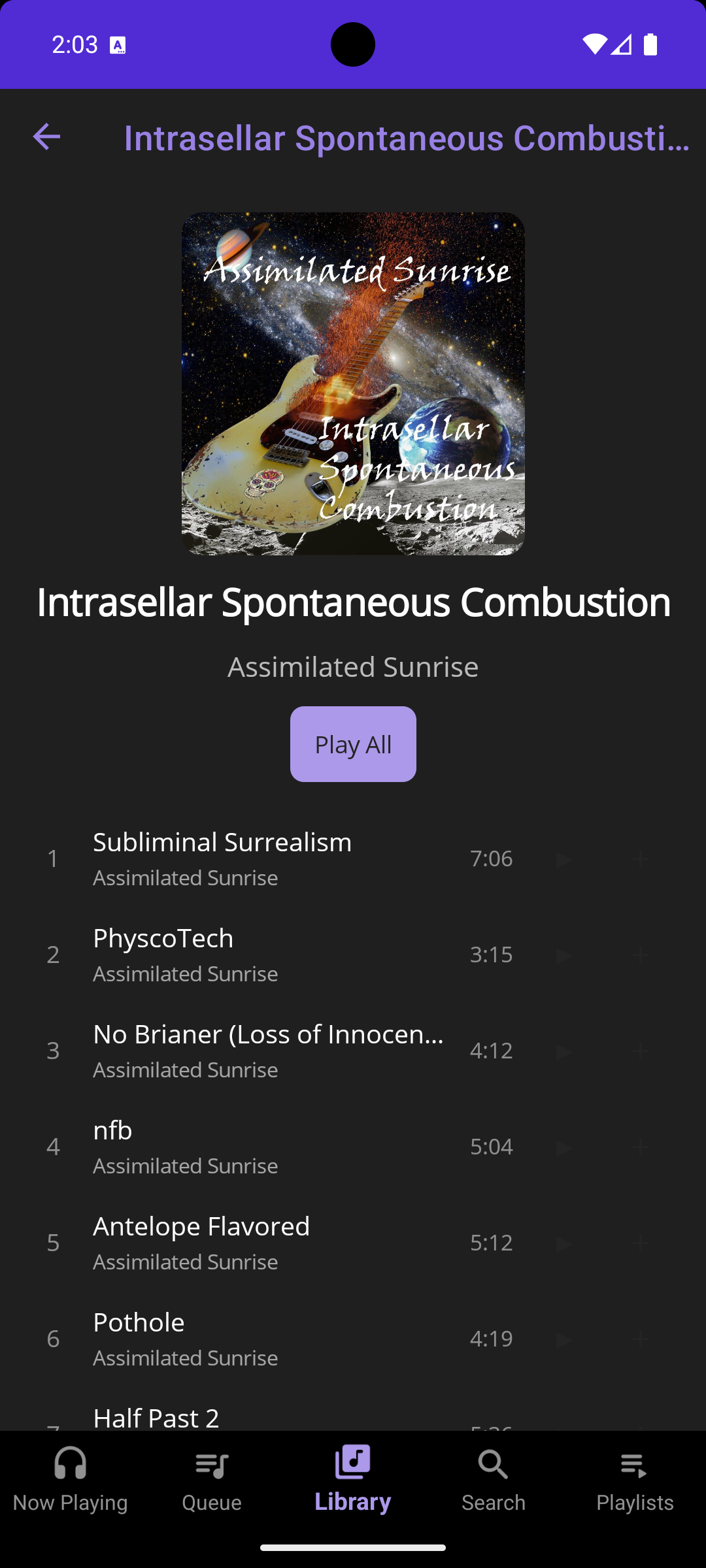
Album Detail
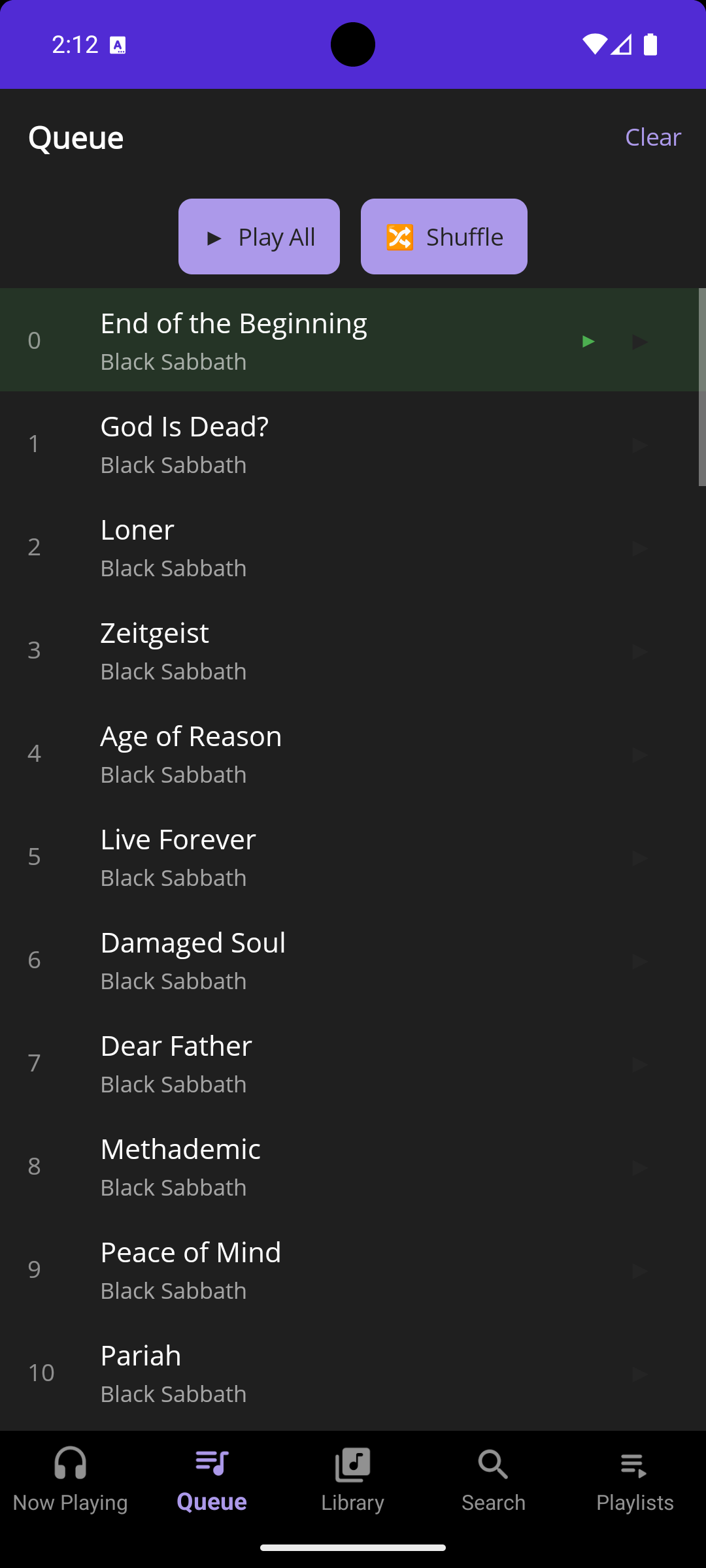
Queue
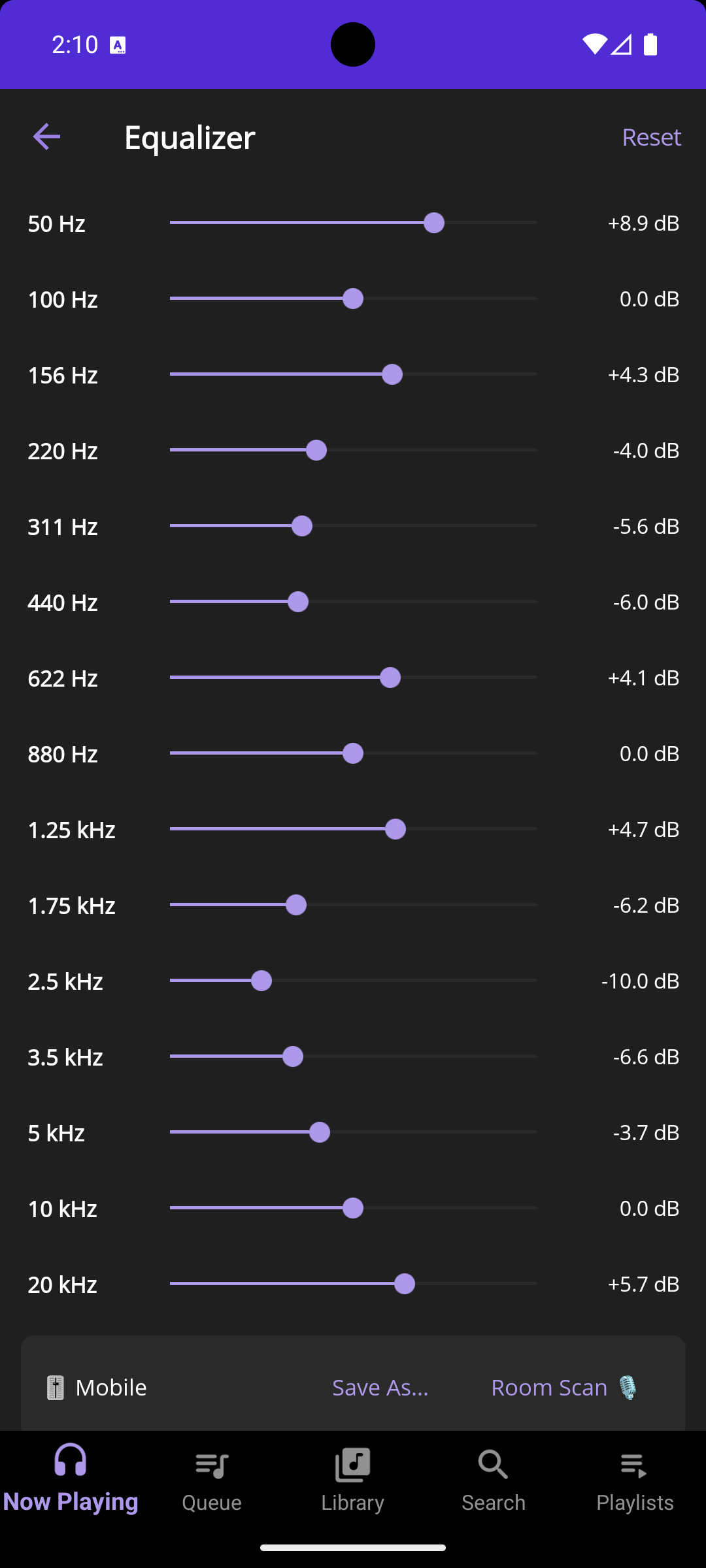
Equalizer
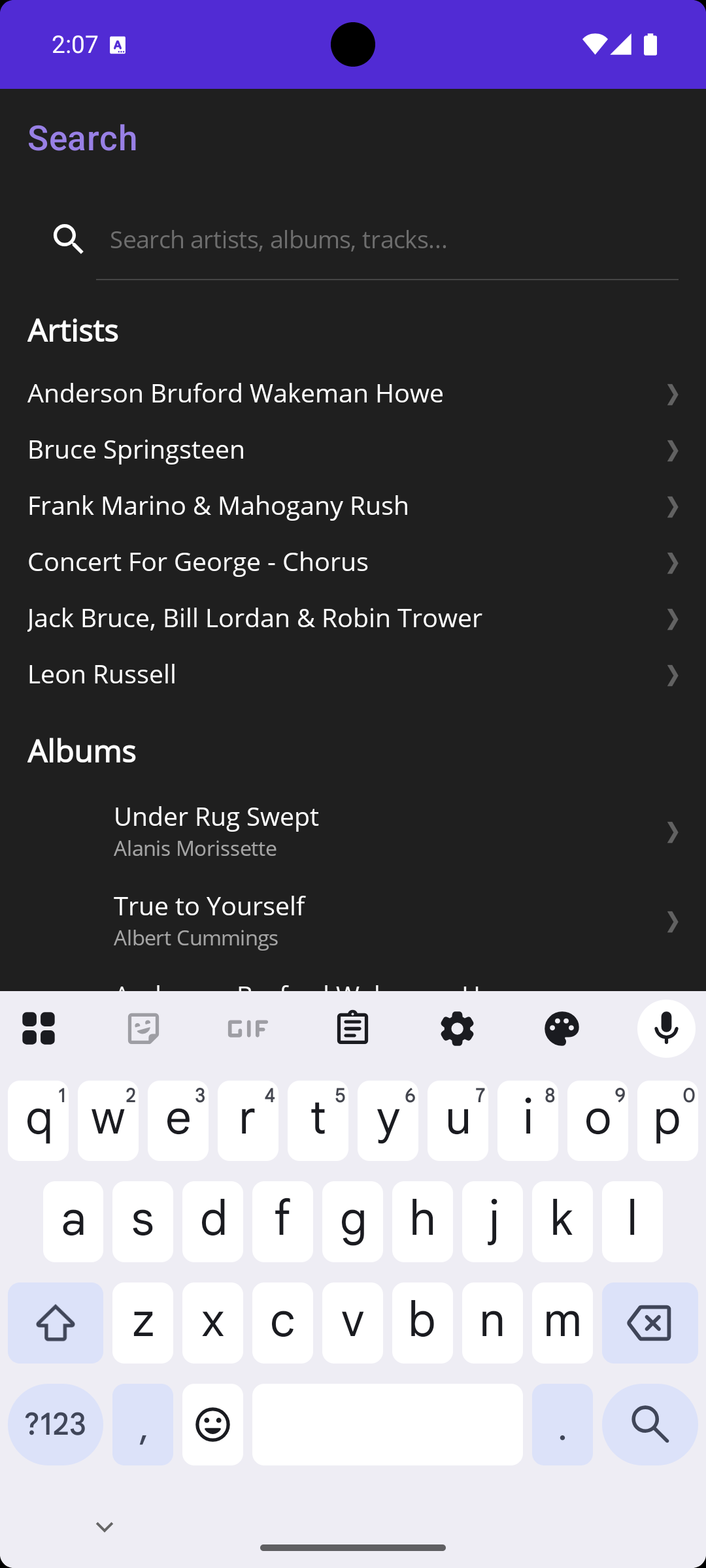
Search
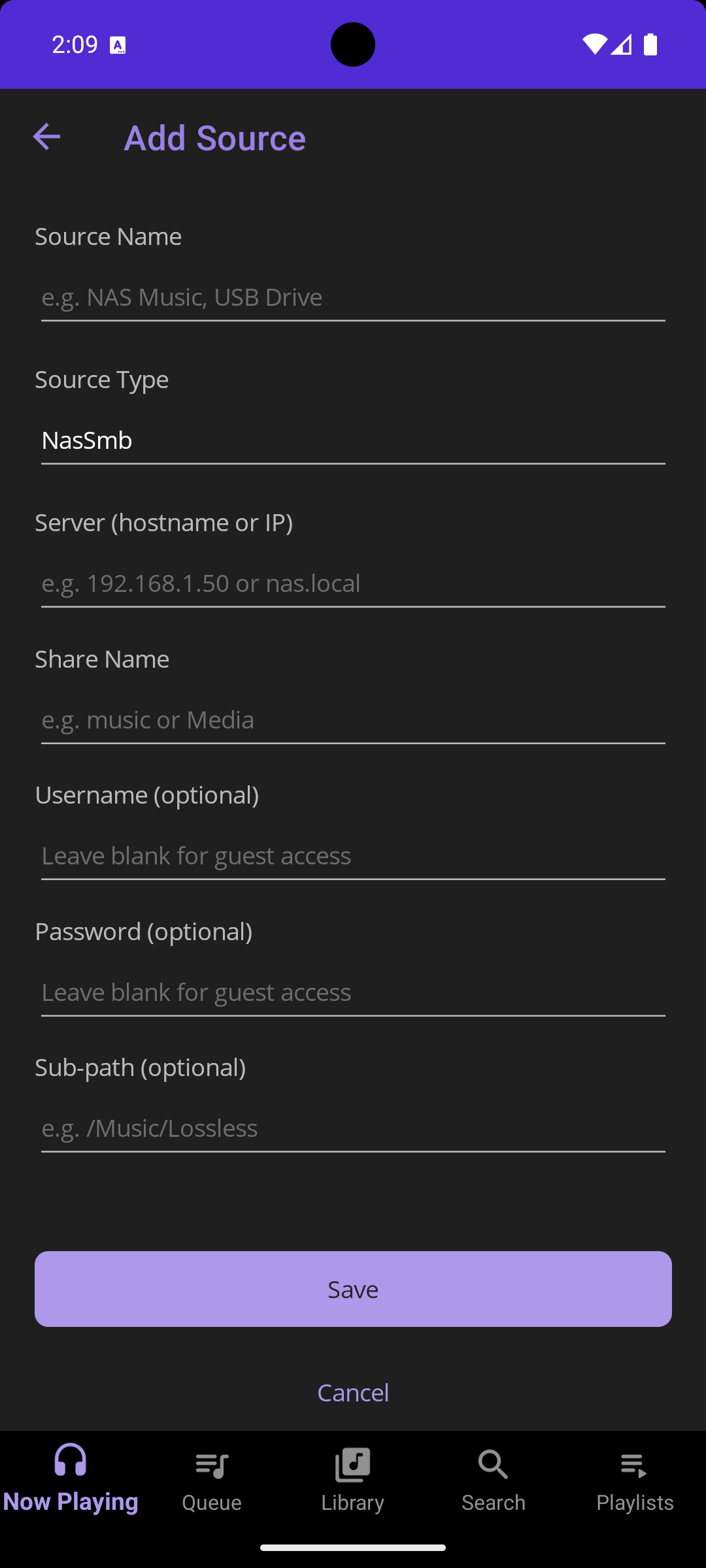
Sources
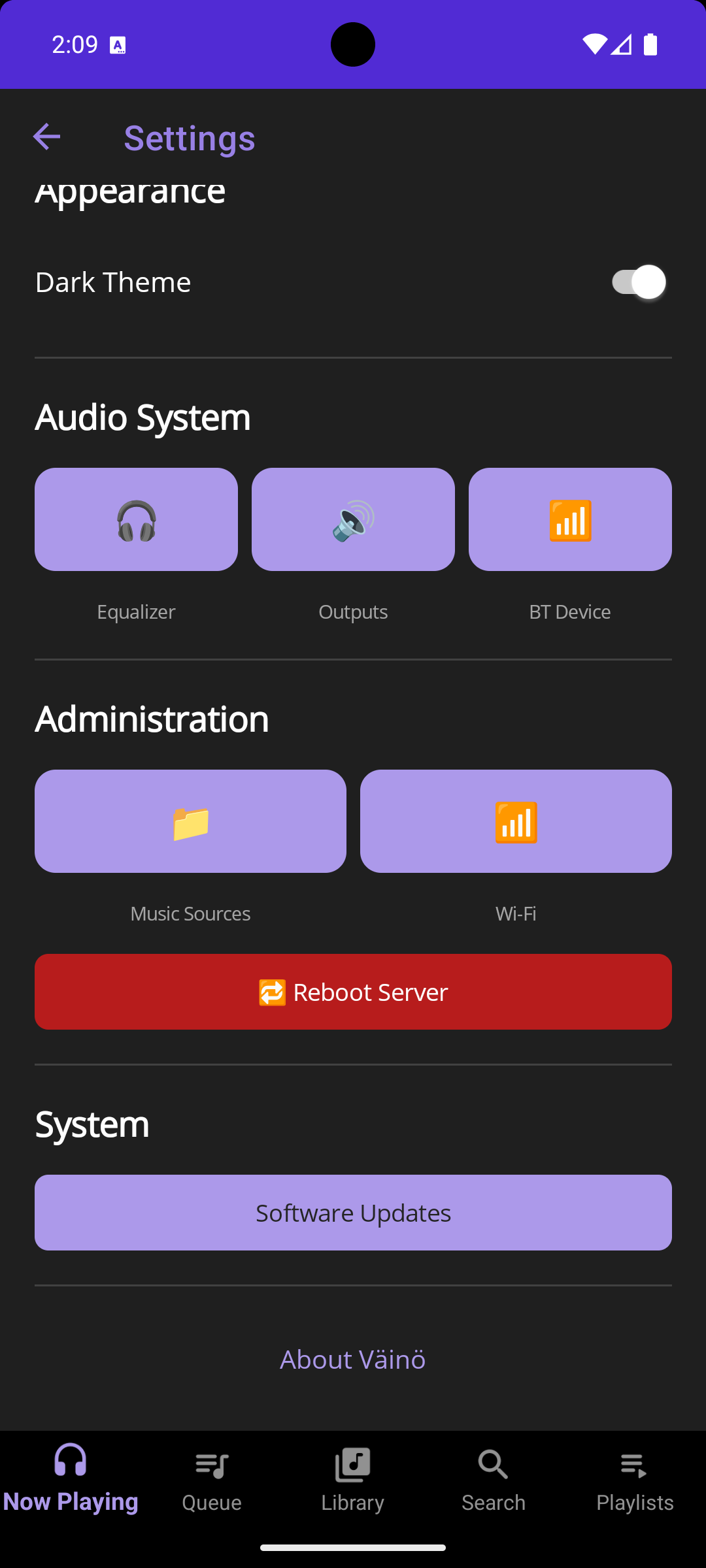
Settings
Also runs in any browser
The full Väinö interface is available at vaino-server.local:5000 from any device on your network — no app required.
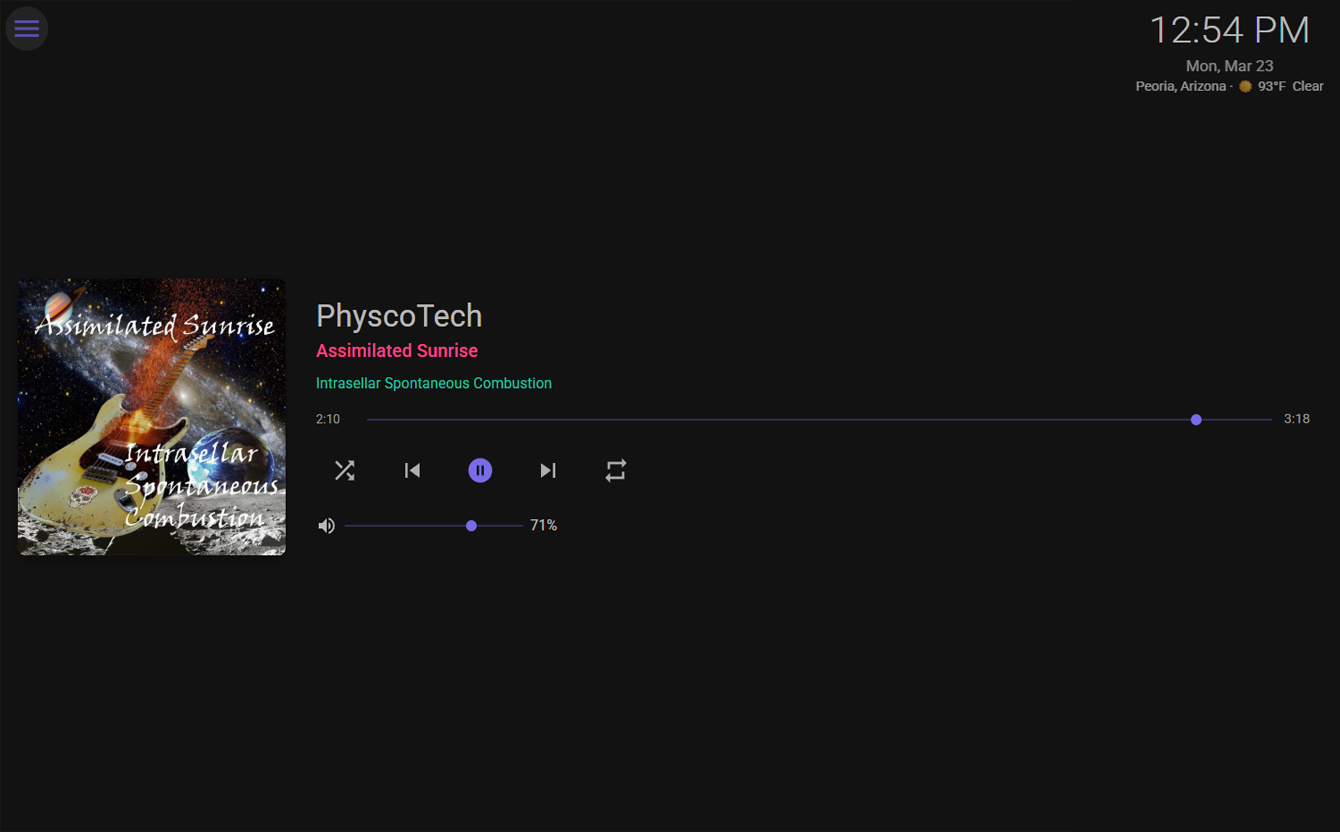
Now Playing — web interface
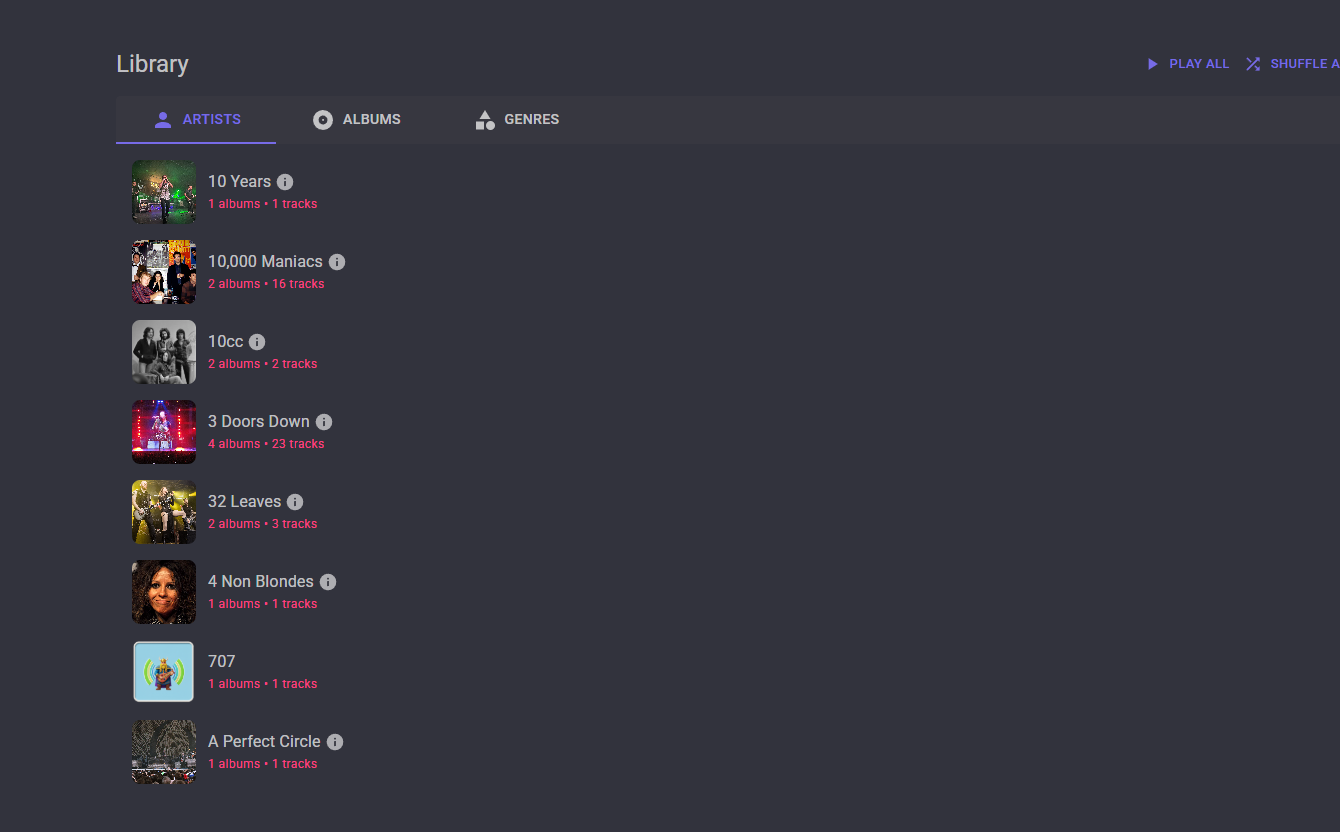
Music Library — web interface
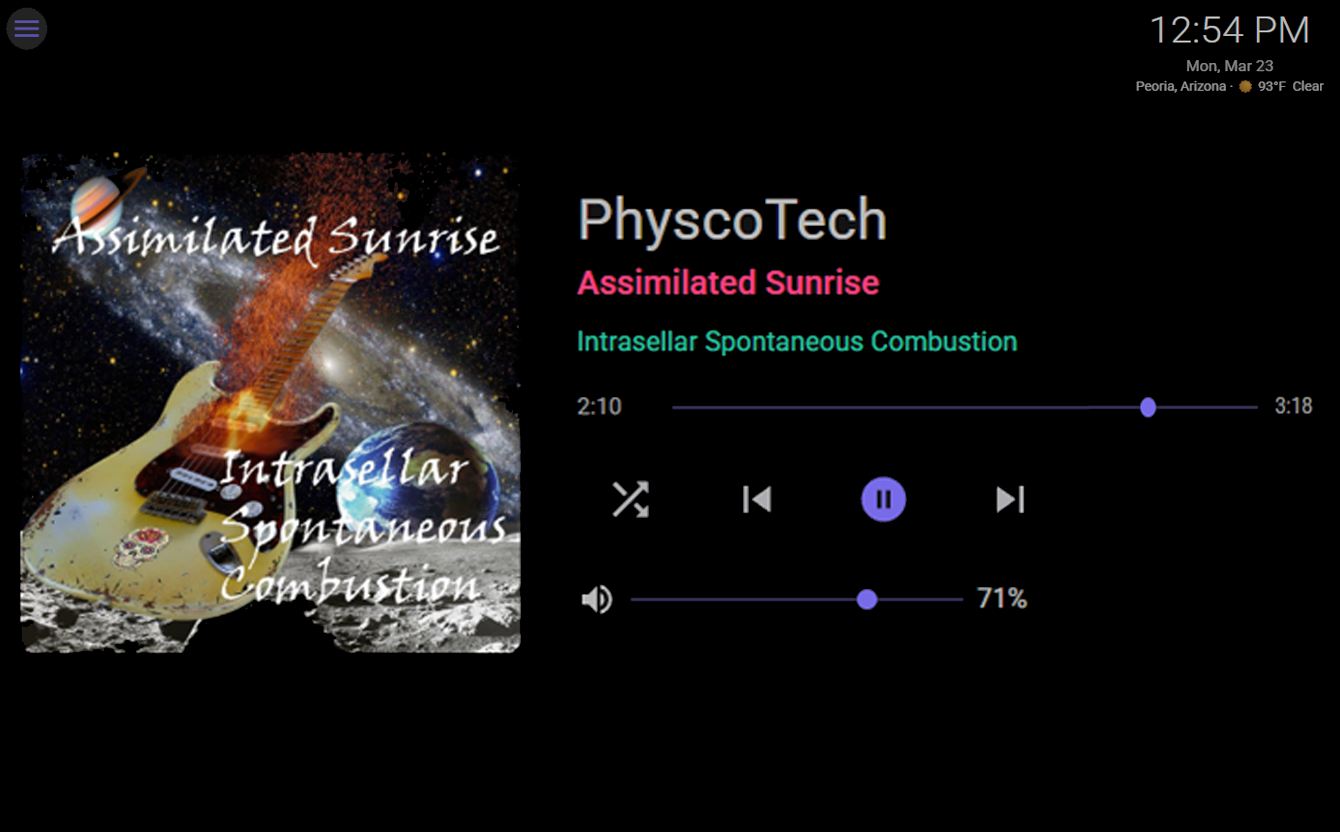
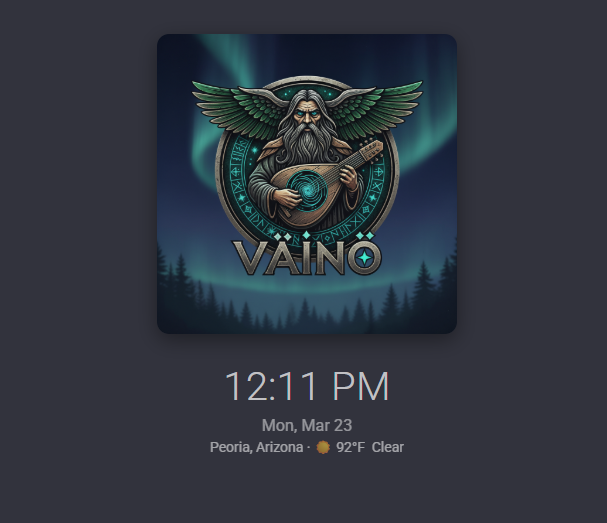
Kiosk mode — Pi touch display
Everything a music server should be
Your Library, Your Rules
Point Väinö at your NAS, USB drive, or external storage. It indexes everything — FLAC, MP3, AAC, OGG — with full metadata, artist images, and album art pulled automatically.
iOS & Android Control
Free companion apps for iPhone and Android. Browse artists, albums, and tracks. Manage the playback queue. Full admin control — sources, Wi-Fi, reboot — from your pocket.
Browser Interface Included
Full-featured web UI available on any device on your network. No app required. Works on tablets, laptops, desktops — anything with a browser.
Parametric Equalizer
10-band equalizer with room correction capability. Save and recall presets. Built-in acoustic scan tool measures your room and suggests a correction curve.
Multi-Room Audio
Add satellite Raspberry Pi devices to extend audio to other rooms. Each satellite automatically displays the master interface on its own touch screen — your whole home stays in sync.
100% Local — No Cloud
Väinö runs entirely on your hardware. Your music never leaves your network. No account required, no data collection, no internet connection needed to play music.
Touch Screen Kiosk
Connect an HDMI touch screen to your Pi and Väinö displays a full-screen control interface automatically on boot. Ideal for a dedicated listening room.
Bluetooth Output
Stream to Bluetooth speakers or receivers directly from the Pi. Configure and switch Bluetooth audio output from the app or web interface.
Over-the-Air Updates
Väinö updates itself from the app or web UI. One tap — no SSH, no terminal. Minor version updates are always free within your licensed major version.

Home Assistant Integration
Control Väinö from Home Assistant. Full media player entity, library browser, EQ preset selector, and automation triggers — available via HACS.
RF Remote Control
Plug in any 2.4 GHz RF remote dongle and it works instantly — no configuration, no drivers. Media keys control playback; navigation keys drive the kiosk interface. Tested with the MX3 Pro and XING WEI Air Mouse. The power button is always blocked so it can't shut down your Pi.
Home Assistant
Väinö meets Home Assistant
The official Väinö integration brings your music server into your smart home. Install in seconds via HACS — no API keys, no configuration files.
What the integration does
- Full media player entity — play, pause, skip, seek, volume, shuffle, repeat
- Media browser — browse Artists → Albums → Tracks from within HA
- Live now-playing — track, artist, and album art pushed to HA in real time
- EQ preset selector — switch presets from dashboards or automations
- Audio output selector — Analog, HDMI, or Bluetooth
- Library sensors — track count, artist count, album count
- Automation-ready — pause on doorbell, play at sunrise, volume by time-of-day
Requires Home Assistant 2024.1 or later. Both devices must be on the same local network.
 Install via HACS
- Open HACS → Integrations → ⋮ → Custom repositories
- Add
supponexustechnologies/homeassistant-vainoas type Integration - In the HACS search box type Väinö — look for the result titled Väinö MusicMaster by SuppoNexus Technologies and click Download
- Restart Home Assistant
- Settings → Devices & Services → Add Integration → search Väinö
- Enter your Pi's IP or hostname — entities appear automatically
Prefer to install manually? Copy
custom_components/vaino/
into your HA config/custom_components/ directory and restart.
Up and running in under an hour
You need a Raspberry Pi 4 or 5, a microSD card, and your music collection on a NAS or USB drive. That's it.
Flash the Image
Download the Väinö Pi image — free 7-day trial available, or from your license email after purchase. Flash to a microSD card with Raspberry Pi Imager or Balena Etcher.
Boot & Activate
Insert the card and power on your Pi. It appears on your network as vaino-server.local:5000. Open the web UI and enter your license key to activate.
Add Your Music
Point Väinö at your NAS share or plug in a USB drive. Väinö scans and indexes your library. Sit back — the music is ready.
Install the App
Download the free Väinö app from the App Store or Google Play. Apply for beta access → Scan the QR code shown in the web UI — connected instantly.
✅ What You Need
- Raspberry Pi 4 or 5 (2GB RAM minimum, 4GB recommended)
- 16GB+ microSD card (Class 10 / A1)
- Wired Ethernet connection (Wi-Fi supported, Ethernet recommended)
- Music on NAS (Samba/NFS) or USB drive
- Audio output: HDMI, USB DAC, Bluetooth, or Pi audio hat
❌ What You Don't Need
- Cloud account or internet connection (after setup)
- Monthly subscription fee
- SSH or terminal knowledge
- Ripping or converting your music files
- A separate NAS — USB drive works fine
One price. No subscription. Ever.
Your $49.95 covers the full v1 license — every minor update, forever free. No subscription, no per-room fees, no feature tiers. When a new major version ships, upgrading is optional and costs just $20.
Väinö v1 License · one-time payment · no recurring fees
- Full Väinö server software
- Raspberry Pi disk image
- iOS app (free, no IAP)
- Android app (free, no IAP)
- Web interface included
- Multi-room satellite support
- All v1.x updates free
- Bluetooth & NAS support
- Equalizer & room scan
- OTA updates from the app
- License transfer tool
- Email support
When a new major version is released, existing customers upgrade for $20 — never full price again.
Already have a license? Purchase an upgrade →
Payments processed securely by Stripe. You'll receive your license key by email immediately after purchase.
Try Väinö before you buy
Download the free trial Pi image and run Väinö for 7 days — no license key needed. Want to shape the product? Apply to beta test the iOS and Android companion apps.
Pi Image — Free 7-Day Trial
Flash the Väinö image to a microSD card and boot your Pi — fully functional, no license key required for the first 7 days. When you're ready to keep it, purchase a license and activate in the web UI.
- ✓Full-featured — nothing locked out during trial
- ✓iOS & Android companion apps work during trial
- ✓Activate with a license key whenever you're ready
Raspberry Pi 4 or 5 · 16GB+ microSD card required
Mobile App Beta Testers Wanted
The Väinö companion apps for iOS and Android are live in beta. Apply for early access — get new features before anyone else and help us make Väinö better.
- ✓Early access via TestFlight (iOS) or Play testing (Android)
- ✓Direct feedback channel to the dev team
- ✓Opt in or out any time — no commitment
Requires the Väinö Pi image · iOS or Android device
User Manual
Everything you need to set up and operate Väinö.
1. What's in the Box (Download)
▼After purchase you'll receive an email containing:
- Your license key (format:
SUPP-XXXXXXXXXXXXXXXXXXXXXXXXXXXXXXXX) - Your 4-digit PIN (needed to move your license to a new Pi)
- A link to download the Väinö Pi disk image (
.img.gz)
Keep your license key and PIN safe. You'll need the PIN if you ever move Väinö to a new Raspberry Pi.
2. Flashing the Pi Image
▼- Download Raspberry Pi Imager from
raspberrypi.com/software(free). - Insert a 16GB+ microSD card into your computer.
- Open Raspberry Pi Imager → click Choose OS → scroll to Use custom → select the
.img.gzfile from your email. - Click Choose Storage → select your microSD card.
- Click Next. When asked "Would you like to apply OS customisation settings?" click No, use defaults.
- Click Write and wait for it to complete (~5 minutes).
Configure Wi-Fi (optional)
If connecting via Wi-Fi rather than Ethernet, the flashed SD card includes a setup helper on its boot partition. Use the method for your operating system:
Windows
- Open File Explorer. The SD card boot partition will appear as a drive (e.g.
D:\). - Double-click
Setup-WiFi.batand follow the prompts — it will ask for your network name (SSID), password, and whether this is a master or satellite Pi. - Once complete, safely eject the SD card.
Mac / Linux
- The boot partition mounts automatically (labelled
bootfsor similar). - Open
vaino-wifi.txtin any text editor and fill in your details:
SSID=YourNetworkName
PASSWORD=YourPassword
MASTER=true
Set MASTER=false if this Pi is a satellite display, not the main music server.
- Save the file, then eject the SD card.
If you're using Ethernet, skip this step entirely — Väinö connects automatically.
3. First Boot & Activation
▼- Insert the microSD card into your Raspberry Pi and power it on.
- Wait 90 seconds for first boot to complete.
- On any device on the same network, open a browser and go to http://vaino-server.local:5000.
- You'll see a 7-day trial message. Click Enter License Key.
- Paste your license key from the confirmation email and click Activate.
- Väinö will verify with the license server and activate within a few seconds.
Tip: If vaino-server.local doesn't resolve, find your Pi's IP address in your router's device list and use that instead (e.g. http://192.168.1.50:5000).
4. Adding Your Music
▼From a NAS (Samba/SMB)
- In the Väinö web UI or mobile app, go to Settings → Music Sources → +.
- Select type NAS (SMB).
- Enter your NAS hostname or IP, share name, and credentials (leave blank for guest access).
- Tap Save. Väinö mounts the share and begins scanning.
From a USB Drive
- Plug a USB drive (FAT32, exFAT, or ext4) into any USB port on the Pi.
- Go to Settings → Music Sources → + → type USB.
- Leave the path blank to auto-detect, or enter the drive path. Tap Save.
Library Scanning
Initial scan time depends on library size — allow 1–5 minutes for 10,000+ tracks. You can use Väinö while it scans. Artist images and album art are fetched in the background automatically.
5. Connecting the Mobile App
▼Download the Väinö app from the App Store (iPhone/iPad) or Google Play (Android). It's free — no in-app purchases.
QR Code (easiest)
- In the web UI, click the QR code icon in the top right.
- Open the Väinö app → Settings → Scan QR Code to Connect.
- Point your camera at the QR code. Connection is instant.
Manual
- In the app, go to Settings.
- Enter
vaino-server.local:5000(or your Pi's IP address with port, e.g.192.168.1.50:5000) in the Server field. - Tap Save & Connect.
6. Equalizer & Room Scan
▼Manual EQ
Go to Settings → Equalizer. Drag the 10 band sliders to adjust the frequency response. Tap Save Preset to name and save your settings.
Room Scan (Acoustic Correction)
The Room Scan feature plays test tones through your speakers and uses your phone's microphone to measure the room's acoustic response, then suggests an EQ correction.
- Place your phone at your main listening position — near ear height.
- Go to Settings → Room Scan.
- Tap Start Scan and follow the on-screen instructions.
- Stay quiet while tones play. The scan takes about 2 minutes.
- Review the suggested curve and tap Apply to save it as a preset.
Note: The iOS/Android apps require microphone permission for the room scan. This permission is only used during scanning — never at any other time.
7. Updating Väinö
▼Väinö updates itself over the air — no SSH or terminal needed.
- In the app or web UI, go to Settings → Software Updates.
- Tap Check for Updates.
- If an update is available, tap Download, then Apply.
- The Pi reboots and applies the update (~2 minutes). The app reconnects automatically.
All minor updates are free. You only need to purchase again when upgrading to a new major version.
8. Moving Väinö to a New Pi
▼Your license is hardware-locked to your Pi on first activation. If you get a new Pi or replace your SD card, you'll need to transfer the license.
- Go to supponexus.com/products/vaino/transfer.
- Enter your first name, last name, email address, and the 4-digit PIN from your purchase email.
- Click Transfer License. Your license is unlocked immediately.
- Flash Väinö onto your new Pi, boot it, and activate with your same license key.
You can transfer up to 3 times per year and 5 times lifetime using the self-service tool. Need more? Contact support — we'll sort it.
9. RF Remote Control
▼Väinö supports any standard 2.4 GHz RF remote that appears as a USB HID device. Plug in the dongle and within a few seconds the remote is active — no configuration or driver installation required. Remotes are detected automatically even if plugged in after the Pi has booted.
Recommended Remotes
- MX3 Pro 2.4G — full media keys (play, pause, next, previous, stop), volume, navigation ring, OK, back, and home. Best all-round choice for Väinö.
- XING WEI 2.4G Air Mouse (VID 1915 / PID 1025) — navigation ring, volume, and air-mouse pointer. Ideal for touch-free browsing of the kiosk library.
- Any RF remote dongle that presents as a standard Linux HID keyboard/media device will work.
Button Mapping
- Play / Pause — toggles playback
- Next / Fast-Forward — skips to the next track
- Previous / Rewind — returns to the previous track
- Stop — stops playback
- Volume Up / Down — adjusts volume in 5% steps
- Mute — mutes and restores volume
- Arrows + OK — navigate the kiosk interface
- Back — go back within the kiosk
- Home — return to the main kiosk screen
Safety & Blocked Keys
The Power button is always intercepted and blocked — pressing it on a remote will never shut down your Pi. Unwanted buttons (movie, TV, colour buttons, screenshot, etc.) are silently ignored regardless of remote model.
Air Mouse / Pointer
If your remote has an air-mouse feature (gyroscope cursor), the pointer interface is left untouched so cursor movement and clicks continue to work naturally in the kiosk browser.
Note on IR Remotes
Infrared (IR) remotes are not supported — they require line-of-sight and additional hardware. Only 2.4 GHz RF USB dongles are plug-and-play.
Open Source Acknowledgements
Väinö is built on the shoulders of excellent open source software. The following third-party components are used in unmodified form under their respective licenses.
MIT License
▼| Package | Copyright | Source |
|---|---|---|
| .NET / ASP.NET Core / EF Core / SignalR / MAUI | © .NET Foundation and Contributors | ↗ source |
| MudBlazor | © 2020 MudBlazor Contributors | ↗ source |
| CommunityToolkit.Mvvm | © .NET Foundation and Contributors | ↗ source |
| QRCoder | © Raffael Herrmann | ↗ source |
| MQTTnet | © Christian Kratky | ↗ source |
| Swashbuckle.AspNetCore | © 2016 Richard Morris | ↗ source |
| BarcodeScanning.Native.Maui | © Axemasta | ↗ source |
| python3-evdev | © Georgi Valkov | ↗ source |
| xdotool | © Jordan Sissel | ↗ source |
Full license text: opensource.org/licenses/MIT
Apache License 2.0
▼| Package | Copyright | Source |
|---|---|---|
| Serilog (AspNetCore, Sinks.Console, Sinks.File) | © Serilog Contributors | ↗ source |
Full license text: apache.org/licenses/LICENSE-2.0
GNU Lesser General Public License (LGPL)
▼| Package | License | Copyright | Source |
|---|---|---|---|
| TagLibSharp | LGPL v2.1 | © Mono Project Contributors | ↗ source |
| SMBLibrary | LGPL v3.0 | © Tal Aloni | ↗ source |
| Avahi | LGPL v2.1 | © Avahi Contributors | ↗ source |
TagLibSharp and SMBLibrary are used in unmodified, dynamically-linked form. You may substitute a modified version by replacing the corresponding assembly.
External Services
▼The following external service is called optionally at runtime. No account or API key is required. No personal data is transmitted — only your configured latitude/longitude to fetch local weather conditions.
| Service | License | Usage | Source |
|---|---|---|---|
| Open-Meteo | AGPL v3 / CC BY 4.0 | Weather data — optional, used only if internet is available | ↗ open-meteo.com |
System-Level Components (Raspberry Pi OS)
▼Common questions
Does Väinö require an internet connection?
Minimally. Väinö checks in with the license server once every 5 days to verify your license — that's the only required internet access. Music playback, library browsing, and all controls work entirely on your local network with no internet. Two optional features do use the internet: software updates (on demand, never automatic) and the clock widget's weather display, which fetches current conditions from Open-Meteo. If your Pi has no internet, weather simply won't appear — everything else keeps working.
Which Raspberry Pi models are supported?
Raspberry Pi 4 (all RAM variants) and Raspberry Pi 5. 2GB RAM is the minimum; 4GB or 8GB is recommended for large libraries. Pi 3B+ works but is not officially supported.
What audio formats does Väinö support?
FLAC, MP3, AAC/M4A, OGG Vorbis, WAV, AIFF, and WavPack. Playback is handled by MPD (Music Player Daemon), which supports virtually every common audio format.
Can I use Väinö without a touch screen?
Absolutely. The touch screen kiosk is optional. Most users control Väinö from the mobile app or web browser.
Does the license cover multiple Pis?
One license covers one Pi (your primary server). Satellite Pis are free — they run display-only mode and do not require a separate license.
What happens if I lose my license key?
Email us at support@supponexus.com with your name, purchase email, and 4-digit PIN. We'll look it up and resend it.
Can I use Väinö commercially?
The standard license is for personal use. For commercial deployments (hospitality, retail, etc.), contact us for commercial licensing terms.
Is my payment information secure?
Yes. Payments are processed by Stripe — SuppoNexus never sees or stores your card details.
Does Väinö work with Home Assistant?
Yes — there's an official HACS integration. Install it via a custom HACS repository today (supponexustechnologies/homeassistant-vaino), or wait for it to land in the HACS default store, which we've submitted to. Once installed, Väinö appears as a full media player entity with library browser, EQ preset controls, and automation support.
Can I control Väinö with a remote control?
Yes. Plug in any 2.4 GHz RF remote dongle — it's detected automatically with no configuration. The MX3 Pro and XING WEI Air Mouse are tested and recommended. Media keys (play, pause, skip, volume) control playback directly; navigation keys drive the kiosk interface. The power button is always blocked so it cannot shut down the Pi. IR remotes are not supported — RF USB dongles only.